Jim Rossman: Slow down the Wi-Fi to connect your smart home devices
Published in Science & Technology News
Recently I got an email from a reader, “Quite a while ago, based on a review in your column, I purchased 3 Kasa plugs (for inside lights) and a Kasa switch (for front outside lights). I loved them. However, a few months ago my Wi-Fi router (from Spectrum) became balky so Spectrum gave me a new updated one. This was labeled as WiFi-7. Alas, my Kasa devices would no longer connect to my Wifi! I called Kasa for help with this problem but they were unable to solve it. I am presently using plug-in mechanical timers for my indoor lights. I really miss being able to manage my lights via my iPhone!"
This problem is actually pretty common. Many smart home devices are designed to only work with 2.4Ghz Wi-Fi, which might not mean much to you if you’re not a techie, but let me explain.
Wi-Fi devices use radios to communicate, and as Wi-Fi gets faster, it uses higher radio frequencies like 5Ghz and 6Ghz, which don’t have as much range as good-old 2.4Ghz.
Most Wi-Fi routers combine their radio network names so that it is easier to connect, and devices can choose what frequency they want to use.
This is OK for a lot of devices like computers, but some older smart home devices have a problem connecting to some of the faster routers.
The fix is to temporarily turn off the other radios, leaving only the 2.4Ghz radio running so you can set up your legacy devices.
To do this, you’ll have to access the settings of your Wi-Fi router and look for the specific spot to turn the radios on and off. You access your router’s settings by using a connected computer, tablet or phone.
You’ll need to do a search for your specific router model to see how to get in to the settings using a browser. There is also a chance your router uses an app. My Eero mesh Wi-Fi system has its own app that lets me access the settings.
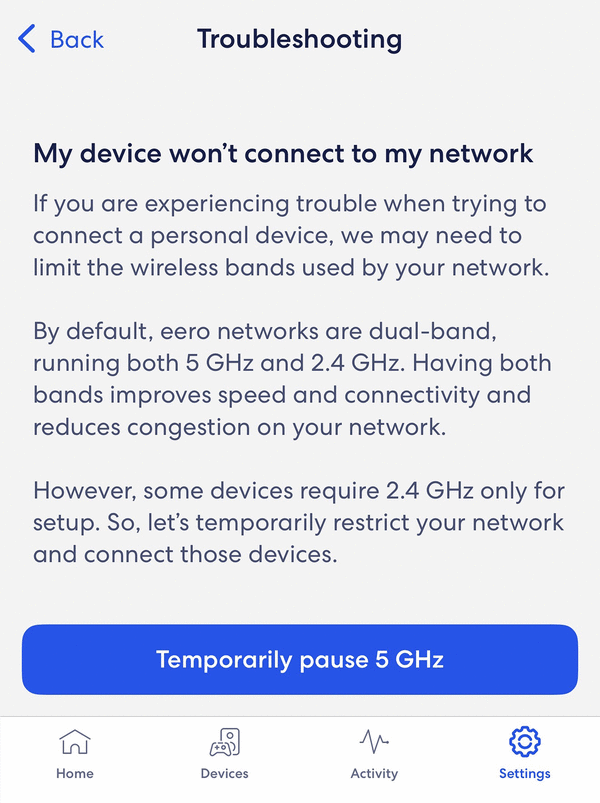
In the Eero app, I go to the “Troubleshooting” section to an option called “My device won’t connect.” Click that and you’ll see “My device is 2.4Ghz only.”
The page explains that Eero networks are dual-band, running both 2.4Ghz and 5Ghz networks to improve speed and connectivity and reduce congestion on your network.
However, some devices require 2.4Ghz only for setup. There’s a button to temporarily pause the 5Ghz radio for about 10 minutes so you can set up your equipment.
Your router has a similar setting, or a setting to manually turn off the 5ghz radio or at the least, a setting to set different network names for the 2.4Ghz and 5Ghz networks. These options will accomplish the same goal – letting you set up your devices.
The reader with the problem did let me know he was able to follow the directions and he did get his switches and plugs connected.
©2026 Tribune Content Agency, LLC.





Comments